![Cnsrv_wmM_mix_rgb - MEDIUM-1.png]](https://support.conserv.io/hs-fs/hubfs/Cnsrv_wmM_mix_rgb%20-%20MEDIUM-1.png?height=40&name=Cnsrv_wmM_mix_rgb%20-%20MEDIUM-1.png)
Table of Contents
About Tags, Floors, and HVAC Zones
Tags, Floors, and HVAC Zones are three ways to organize sensors in Conserv Cloud beyond the standard Location > Space > Sensor hierarchy.
Tags Floors and HVAC Zones are a paid feature available only for Pro, Complete and Enterprise customers. Both Admins and Editors can create and manage tags.
-
Tags: Freeform labels you create and apply to individual sensors from the sensor detail drawer.
-
Floors: Building levels defined in Location settings, then assigned to spaces
-
HVAC Zones: Mechanical zones defined in Location settings, then assigned to spaces
All three appear in the Analytics filter panel. Combine them with other filters and save the views you return to most.
Add Tags to a Sensor
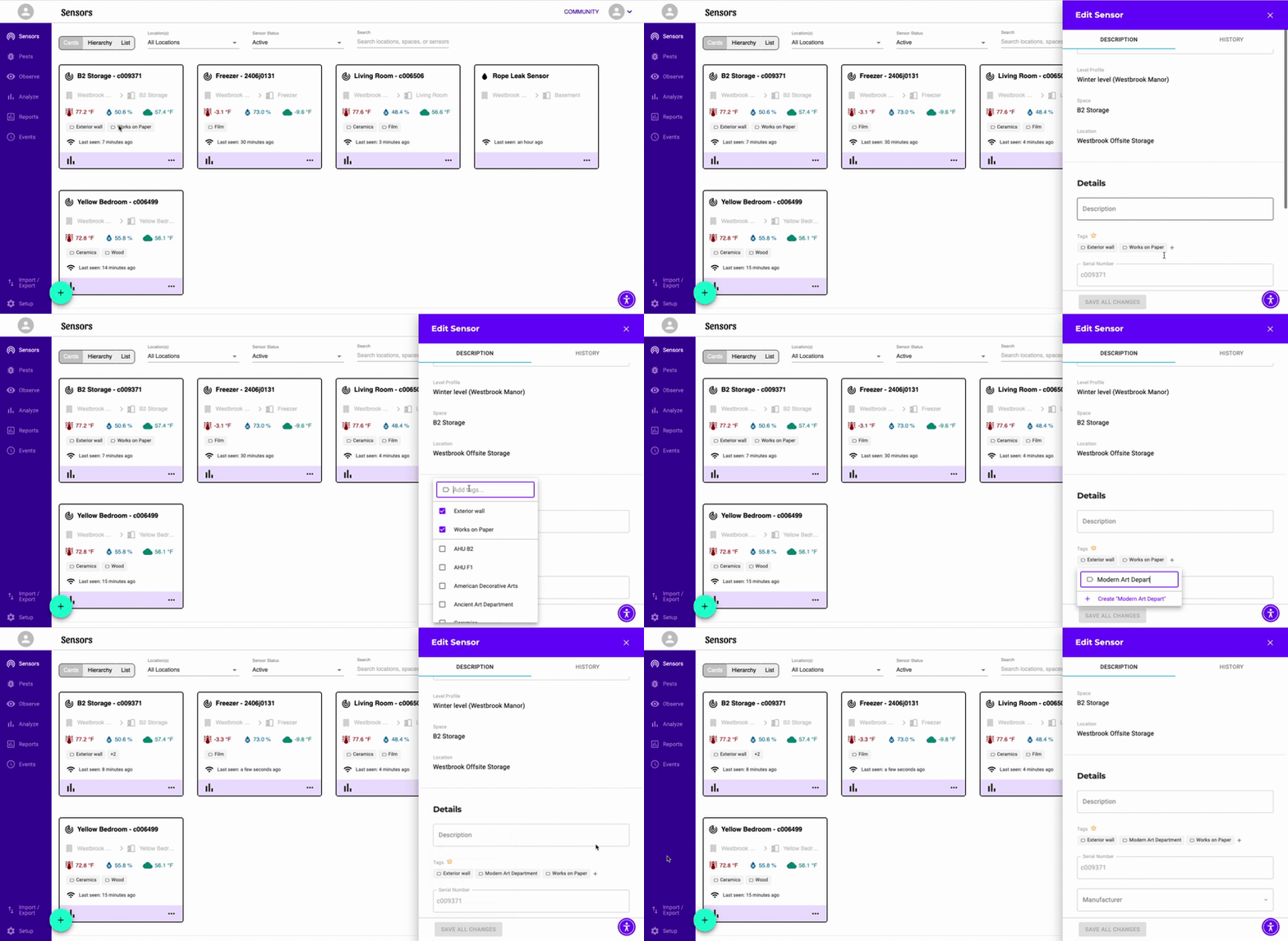
Tags are freeform — there is no predefined list. Create them as needed from any sensor detail drawer. One sensor can carry multiple tags, and tags work across spaces, so you can group sensors that are not physically near each other.
-
Sign in to Conserv Cloud
-
Navigate to the Sensors page by clicking the top icon in the left navigation menu.
- Click on any sensor name to open the sensor detail page for the sensor you want to tag.
- Locate the Tags field under Details below the Description field.
- Click Add tags...
- Type the label you want to create.
- Press Enter or select the label to confirm.
The tag is created and applied to the sensor immediately. - Repeat to add additional tags to the same sensor.
Tip
Tags can represent anything that matters to your institution — collection types such as ceramics storage or works on paper, loan status, department names, conservation priorities, or any other label your team uses.
Edit or Archive Tags
This feature will be released at the end of July 2026.
-
Sign in to Conserv Cloud
- Navigate to Setup by clicking the gear icon at the bottom of the left navigation menu.
- Select TAGS on the top tabs next to the EVENTS setup area.
- Use the 3 dot menu on the far right of the tag to Rename or Archive the tag.
Archiving hides this tag — it is removed from the tag pickers and no longer shown on the records it is assigned to. Nothing is deleted; you can restore it anytime to bring it back. - To restore an archived tag, select the Archived chip to see a list of archived tags. Use the 3 dot menu and select Restore.
Set Up Floors and HVAC Zones
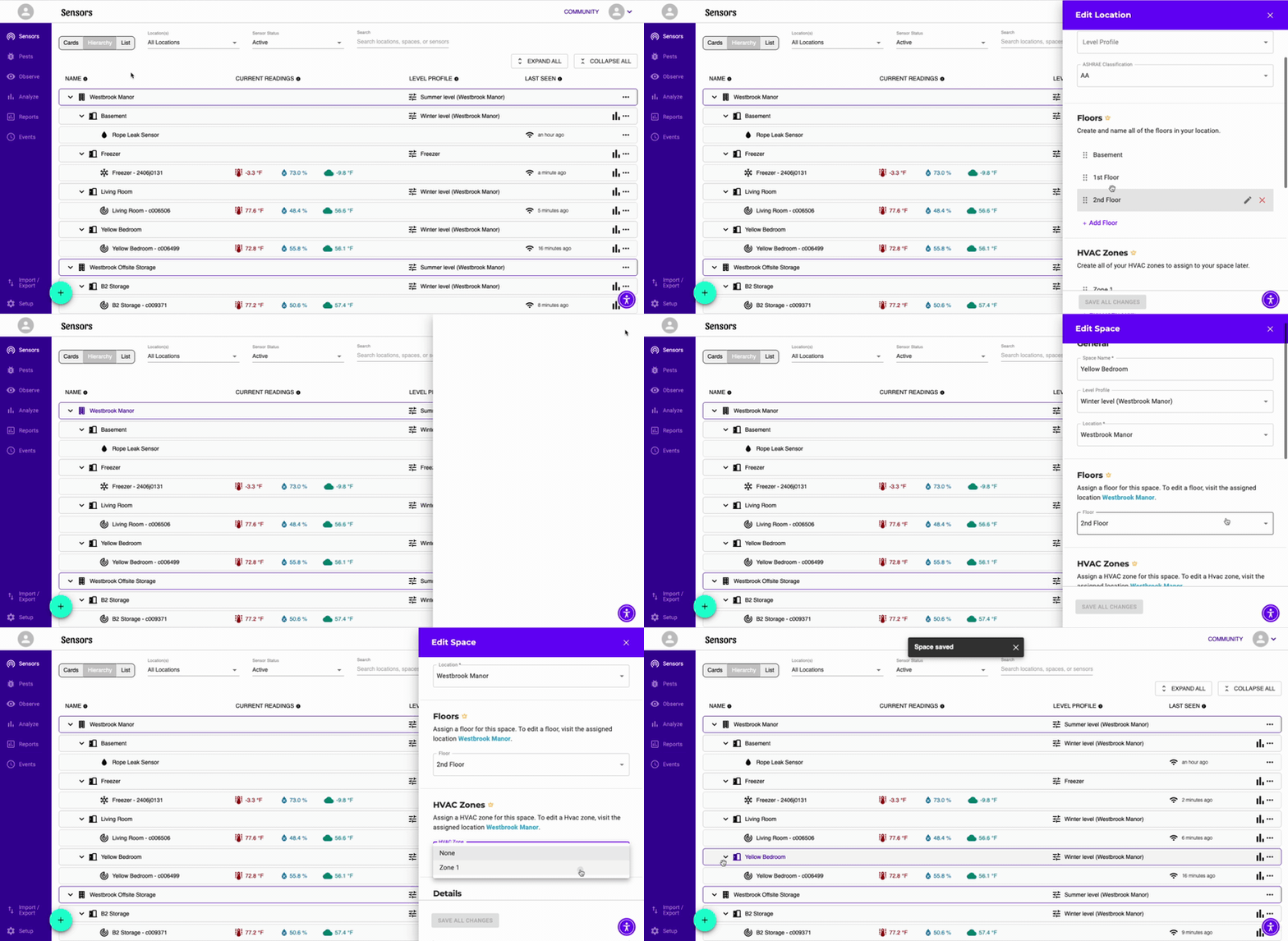
Floors are defined at the location level and then assigned to spaces within that location.
Define Floors and HVAC Zones in Location Settings
-
Sign in to Conserv Cloud.
-
Navigate to the Sensors page by clicking the top icon in the left navigation menu.
-
Click on the Location name to open Location Settings for the relevant location.
-
Scroll down to the Floors or HVAC Zones section.
-
Enter a Floor / HVAC Zone name and save. Repeat as needed.
Assign a Space to a Floor or HVAC Zone
-
Sign in to Conserv Cloud.
-
Navigate to the Sensors page by clicking the top icon in the left navigation menu.
-
Click on the Space name to open the space you want to assign.
-
Scroll down to the Floors or HVAC Zones section.
-
Choose a floor or HVAC Zone from the dropdown list.
The space is now associated with that floor or HVAC Zone and will appear when you filter by floor in Analytics.
Filter by Tags, Floors, and HVAC Zones in Analytics
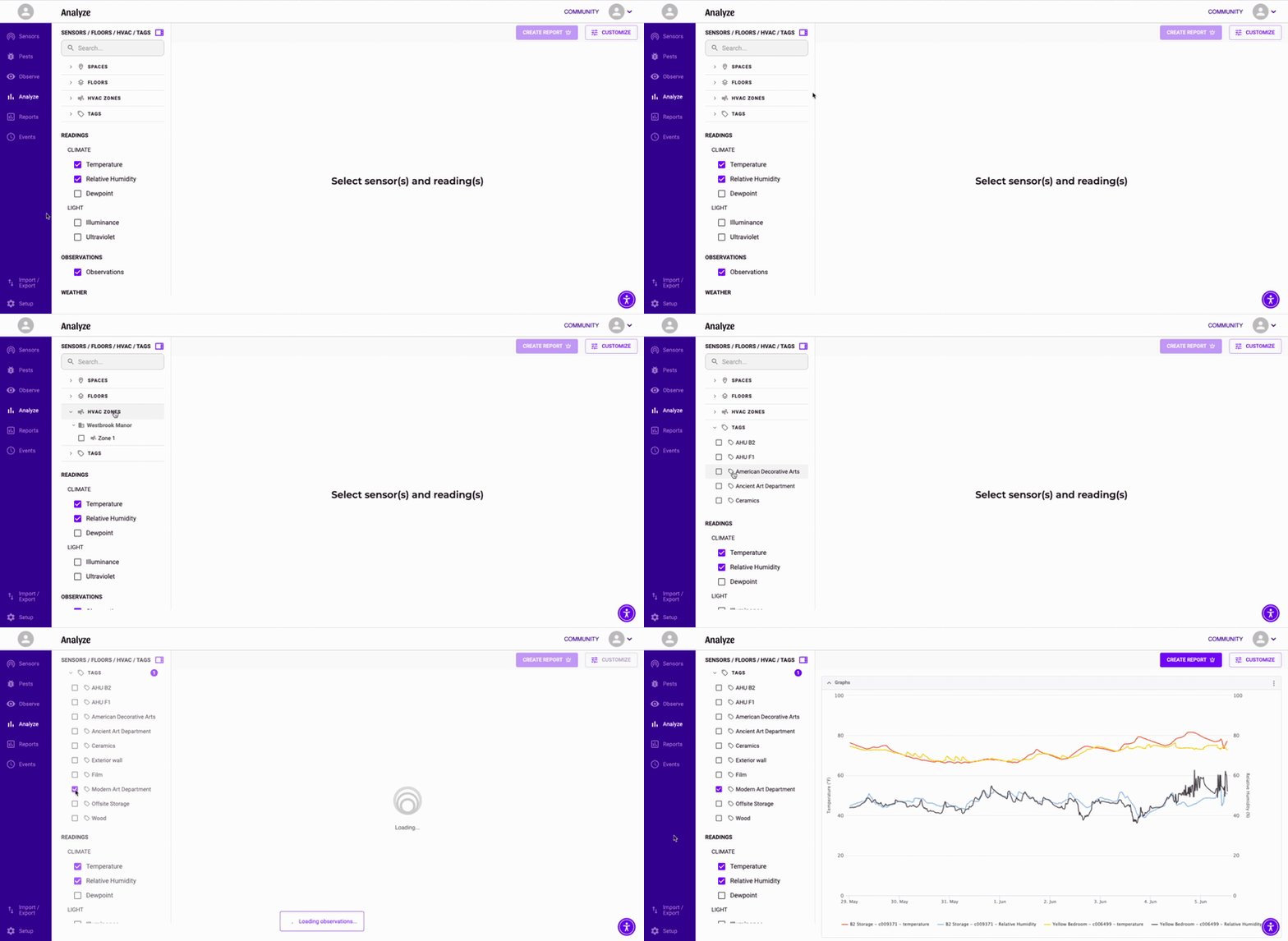
Once you have created tags, floors, and HVAC zones, all three appear in the Analytics filter panel.
- Sign in to Conserv Cloud.
- Navigate to the Analyze page in the left navigation menu.
- Open the filter panel below the search bar.
- Select any combination of tags, floors, or HVAC zones.
The chart updates immediately to show only the selected sensors.
Tip
Layer tag filters with floor and HVAC zone filters to create precise views for specific areas of your building or collection. HVAC zone filters can be especially useful for investigating mechanical failures and individual AHU behavior.
Access to Pro Features Without Conserv Sensors
Some features in Analytics are only available for Conserv Customers. If you cannot purchase hardware subscriptions or wish to continue using your own data loggers, contact the Conserv Sales Team to purchase a software-only solution (Conserv Pro).
Support
Reach out to the Conserv Support Team if you run into any issues or have questions about Tags, Floors and HVAC Zones. When requesting assistance, please indicate your browser and operating system (Mac or Windows).
Conserv responds to all initial inquiries before the end of the next business day. If you have not heard back in more than 2 US business days, please check your spam and junk folders.
Please whitelist support@conserv.io for a smooth support experience.