![Cnsrv_wmM_mix_rgb - MEDIUM-1.png]](https://support.conserv.io/hs-fs/hubfs/Cnsrv_wmM_mix_rgb%20-%20MEDIUM-1.png?height=40&name=Cnsrv_wmM_mix_rgb%20-%20MEDIUM-1.png)
Table of Contents
- About 3-Point Calibration
- Collect Your Calibration Values
- Open the Calibration Screen
- Apply a Calibration
- Clear a Calibration
- Frequently Asked Questions
- Troubleshooting and Support
About 3-Point Calibration
⚠️ This feature is only available for Conserv SCS-3-5 devices on firmware 1.20.0 or above. It will be rolled out slowly over 2026-2027 and may not be available for all customers today. ⚠️
3-point calibration lets you correct the relative humidity (RH) readings of a Smart Collection Sensor (SCS) in the field. You compare the SCS to a reference instrument at three RH levels: Low, Mid, and High. Then you enter both sets of values in the Conserv Cloud Mobile App.
Warning: The SCS uses the three points to adjust every RH reading before it sends the reading to Conserv Cloud.
Do not apply changes unless you have a trustworthy reference. All relative humidity readings will be affected until you apply a new calibration or clear it.
3-point calibration adjusts RH only. It does not change temperature, light, or UV readings.
Conserv sensors are calibrated and tested before they ship. Use 3-point calibration when a comparison with a calibrated reference shows that an SCS reads outside its specification. For more information about accuracy and how to compare devices, see Sensor Readings and Accuracy and Relative Humidity Measurements.
Collect Your Calibration Values
You need six values for each SCS:
| Point | Measured % | Reference % |
|---|---|---|
| Low | The RH that the SCS reports | The RH that your reference reports at the same time |
| Mid | The RH that the SCS reports | The RH that your reference reports at the same time |
| High | The RH that the SCS reports | The RH that your reference reports at the same time |
Follow these guidelines when you collect the values:
- Choose three points that cover the range where the SCS operates. Points that are further apart give a better result. For example, Conserv uses 30%, 50%, and 70% RH.
- Use a reference that has a known accuracy and a current calibration date, for example a reference instrument that has been calibrated more recently than your Conserv sensor, a calibration chamber, or saturated salt solutions. The most accurate way to do this is to use the numbers on the calibration result from a lab.
- If running the calibration yourself, put the SCS and the reference in the same environment at the same, stable temperature.
- Wait until both readings are stable before you record the values. Allow at least 1 hour at each point. If using saturated salts in an enclosure, wait at least 1 day for the salts to stabilize.
- Record the Measured and Reference values at the same time.
Caution: If the SCS already has an active calibration, the readings that it reports are already adjusted. Clear the calibration before you collect new Measured values.
Open the Calibration Screen
Before you begin: You must have the Admin or Editor role. The SCS must have firmware version 1.20.0 or later. Turn on Bluetooth, and stand close to the SCS. For more information about firmware, see Verify and Update Firmware Versions.
- Open the Conserv Cloud Mobile App.
- On the home screen, tap Connect to Sensors
The app scans for SCSs that are near you. - Tap Connect for the SCS that you want to calibrate.
- In the upper-right corner of the screen, tap the settings icon.
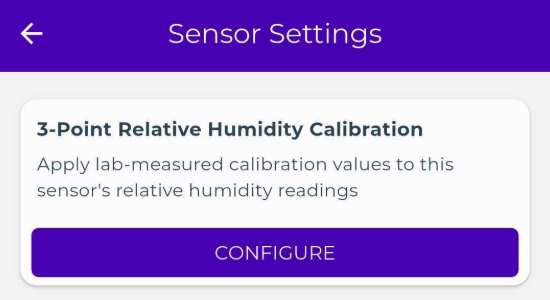
The Sensor Settings screen opens. - Under 3-Point Relative Humidity Calibration, tap CONFIGURE.
The 3-Point RH Calibration screen opens.
The Active Calibration section shows the calibration that the SCS uses now. If the SCS has no calibration, the section shows No calibration applied. The sensor is reporting unadjusted relative humidity readings.
Apply a Calibration
- Open the calibration screen for the SCS.
- Under Apply New Calibration, enter the Low, Mid, and High values in Measured % and Reference %.
- Tap APPLY.
The Apply New Calibration? dialog opens.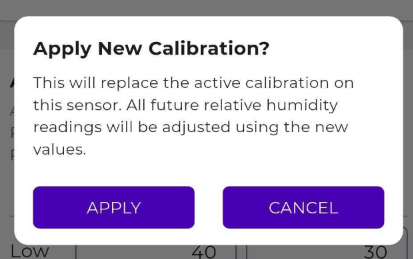
- Tap APPLY, and stay close to the SCS. Do not close the app.
The app shows Calibration Applied. The Active Calibration section shows the new values.
Important: The SCS adjusts RH readings from its next reading. Readings that the SCS sent before the calibration do not change.
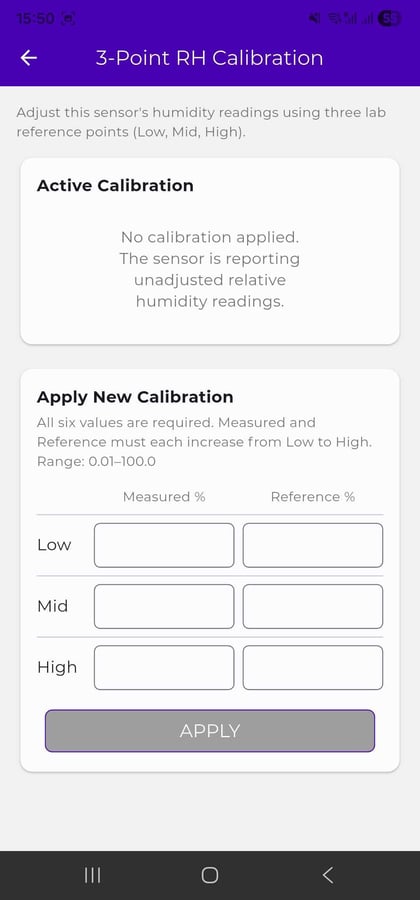
The values must follow these rules:
- Enter all six values.
- Each value must be from 0.01 to 100, with up to two decimal places.
- The Measured % values must increase from Low to High. The Reference % values must also increase from Low to High.
Tip: After you apply a calibration, check the SCS against your reference again. Make sure that the adjusted readings are in specification.
Clear a Calibration
When you clear a calibration, the SCS goes back to unadjusted RH readings.
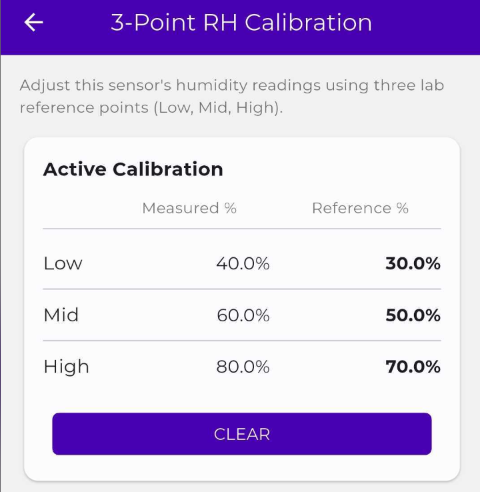
- Open the calibration screen for the SCS.
- In Active Calibration, tap CLEAR.
he Clear Calibration? dialog opens. - Tap CLEAR.
The app shows Calibration Cleared, and the SCS reports unadjusted RH readings.
Frequently Asked Questions
Why Do I Not See the Settings Icon or the Calibration Option?
The app shows 3-point calibration only when all of these are true:
- 3-point calibration is available for your organization.
- You have the Admin or Editor role.
- The SCS has firmware version 1.20.0 or later.
- The app is connected to the SCS.
To update the firmware, see Verify and Update Firmware Versions.
Why Is APPLY Not Available?
The app turns on APPLY only after you enter six valid values. Check the messages under the fields:
- Must be 0.01–100. means that a value is out of range.
- Measured and Reference must each increase from Low to High means that the values are not in order.
What Do I Do If the App Shows Calibration Failed?
If the app shows Couldn't reach the sensor, move closer to the SCS, and try again.
If the app shows The sensor rejected these values, make sure that the Measured % and Reference % values each increase from Low to High, and try again.
Does Calibration Change My Historical Data?
No. The calibration adjusts only the RH readings that the SCS takes after you apply it.
Do I Need to Calibrate Temperature?
No. 3-point calibration adjusts RH only. Temperature does not drift the same way that RH does. The long term drift for temperature in the Conserv SCS-3-5 sensors is less than ±0.03°C / year.
Troubleshooting and Support
If you have trouble reaching the 3-Point RH Calibration screen because of Bluetooth issues, see Resolve Conserv Cloud Mobile App issues for troubleshooing tips.
If you need assistance, or have questions, Contact the Conserv Support Team. If applicable, indicate the serial number of the sensor. The serial number can be found on the back of the SCS under the QR code. It will start with a c and is followed by 6 numbers, for example c006500.